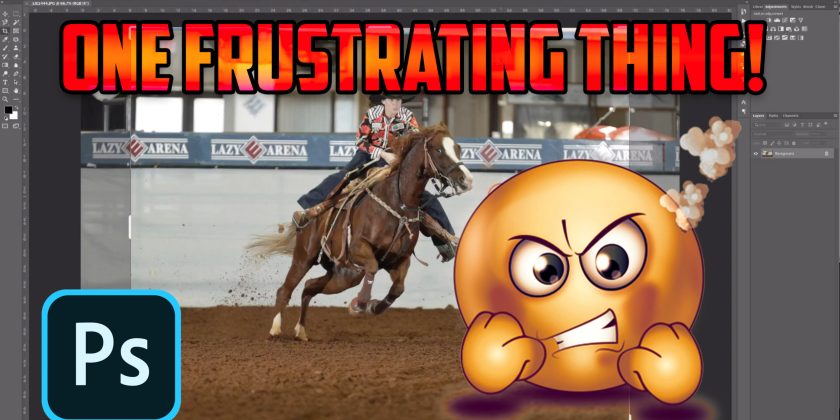
A student from the Custom Collage Creation Course brought this to my attention, and it is worth sharing with everyone who edits in Photoshop. You crop a picture to fit a collage layout, then realize the horse’s ears are too close to the edge. You try to move the image back, and the pixels are simply gone. Frustrating!
What is happening
When you select the Crop tool in Photoshop, the options bar at the top of the screen includes a checkbox called Delete Cropped Pixels. When it is turned on, everything outside your crop is thrown away the moment you commit. The canvas gets smaller and the extra image data disappears from that layer.
The fix
- Select the Crop tool.
- Look at the options bar across the top of the window.
- Uncheck Delete Cropped Pixels.
- Crop as usual.
Now Photoshop hides the area outside the crop instead of deleting it. If you need to reposition the image later, use the Move tool and the hidden part slides back into view. You can even select the Crop tool again and drag the edges outward to recover what was hidden.
Why it matters for collages
In a collage, every picture is adjusted several times as you balance the layout. Keeping the full image means you can shift a horse to make room for a name, enlarge a frame or change the composition when a customer asks for a different product size. You keep your options open instead of going back to the original file and starting over.
Even better: work non-destructively
Placing images as Smart Objects and using layer masks rather than erasing are two more habits that protect your work. Smart Objects let you resize up and down without losing quality, and masks can always be edited or removed. Combine these with the crop setting above and you will rarely lose pixels again.
A quick habit check
Photoshop remembers the last settings you used for each tool, so once you uncheck the box it usually stays unchecked. Still, it is worth a glance at the options bar whenever you update Photoshop or move to a new computer, because a fresh install brings the default back. Making that glance part of your routine takes two seconds and saves a lot of rework.
It is a small checkbox, but it can save you a lot of time and frustration. Check yours today.